 SpanDraft
Beam, material and cross-section
A SpanDraft beam is defined by its length L, material, cross-section, and selected bending axis.
Segments
A beam consists of one or more segments. Each segment has its own material, cross-section, and bending axis. They are constant within a segment and change abruptly at the segment boundaries. A new project starts with one segment. Under Project properties, select a segment in the Segments list and enter a position under Split at: both halves first receive all properties of the segment that was split. The material, cross-section, and axis cards apply to the selected segment; the Start of the segment can be moved if needed, and Remove segment lets the left neighbour take it over.
A segment boundary may be at any position, including on a support, a spring support, or a load. Self-weight uses the density and area of each segment and therefore needs the density of every material. Boundaries appear as thin cross lines on the beam and as dashed lines in the result diagrams. The beam length must stay greater than the last boundary.
Beam length
The beam extends from x = 0 on the left to x = L on the right.
Supports and loads may be located at the ends or anywhere along the beam, so overhangs are possible. When shortening a beam, all existing supports and loads must remain within the new length.
Material
| Property | Meaning in SpanDraft |
|---|---|
E – Young’s modulus |
Determines stiffness and therefore deflection and rotation |
Strength value: yield strength Re or 0.2% proof strength Rp0.2 |
Used to calculate the safety factor |
Density ρ is used when optional self-weight is enabled. SpanDraft then derives a downward distributed load from the material density and cross-sectional area.
Poisson’s ratio ν can be stored but does not directly enter the current beam calculation.
Material number, standard designations, and category are used for identification. Catalog values are technical reference values and do not replace the applicable standard, manufacturer data, or material certificate.
Each material has exactly one strength value. For a custom material, explicitly select its type and enter the corresponding numerical value. The material category does not determine the strength type.
Older data may not yet contain a strength type. Before editing such a material, saving the project normally, or creating a report, select either Re or Rp0.2 in the material editor.
Material library
The shared material table contains the current project material and the available material presets.
The project material is marked with a checkmark and the suffix (current in project). If it matches the active search and filters, it appears first.
Under Source, you can show only the current project material, Built-in materials, or My materials. Categories apply across all three sources.
A lock icon identifies built-in, read-only materials. Create copy… creates an editable version in My materials. New material also creates a custom library entry once confirmed.
Customize… opens a small editor. OK confirms the edit:
- for a custom material, the library entry is saved immediately;
- for the project material, only the working state of the open selection is changed at first.
Apply transfers the selected material to the project overview, where the project changes are confirmed together.
Cancel in the material selection discards the working state of the project material but keeps any library changes that have already been confirmed.
The project stores all material values, including the category, material number, and other standards, as an independent snapshot. Changing or deleting a library entry later does not modify existing projects.
Save to library… is available for the project material as long as no fully identical material already exists. If a custom material with the same designation but different data already exists, you can replace the existing entry after an additional confirmation, change the designation, or cancel.
Cross-section
For a parametric cross-section, you enter geometric dimensions and SpanDraft calculates A, I, W+, and W−.
The dimensions describe an idealized shape; they do not automatically represent a standardized commercial section.
Supported parametric shapes
- Rectangle: width and height
- Rectangular hollow section: outer width, outer height, wall thickness, and optional outer radius
- Circle: diameter
- Circular hollow section: outer diameter and wall thickness
- I/H section: height, width, web thickness, flange thickness, and inner radius
- U section: height, width, web thickness, flange thickness, and inner radius
- T section: height, width, web thickness, flange thickness, and inner radius
- Angle: width, height, leg thickness, and inner radius
For rectangular hollow sections, the inner radius follows from the outer radius and wall thickness. For I/H, U, T, and angle sections, the outer edges remain sharp. A radius of zero means a sharp corner.
With manual properties, you enter existing tabulated or manufacturer values for A, I, and W directly: either for a single axis or for an axis pair y-y/z-z or u-u/v-v.
For manual properties, W+ = W− = W. Different section moduli on the two sides of an asymmetric section therefore cannot be represented fully in this mode.
Manual properties contain no geometric outline and no derived centroid.
| Quantity | Meaning |
|---|---|
A |
Cross-sectional area, for example in mm² |
I |
Second moment of area, for example in mm⁴; together with E, it determines flexural rigidity |
W+, W− |
Section moduli used for elastic bending stress, for example in mm³ |
W+ and W− refer to geometric sides of the section, not directly to tension and compression.
Custom cross-sections can be stored in the library and reused. The project retains an independent copy.
Bending axis
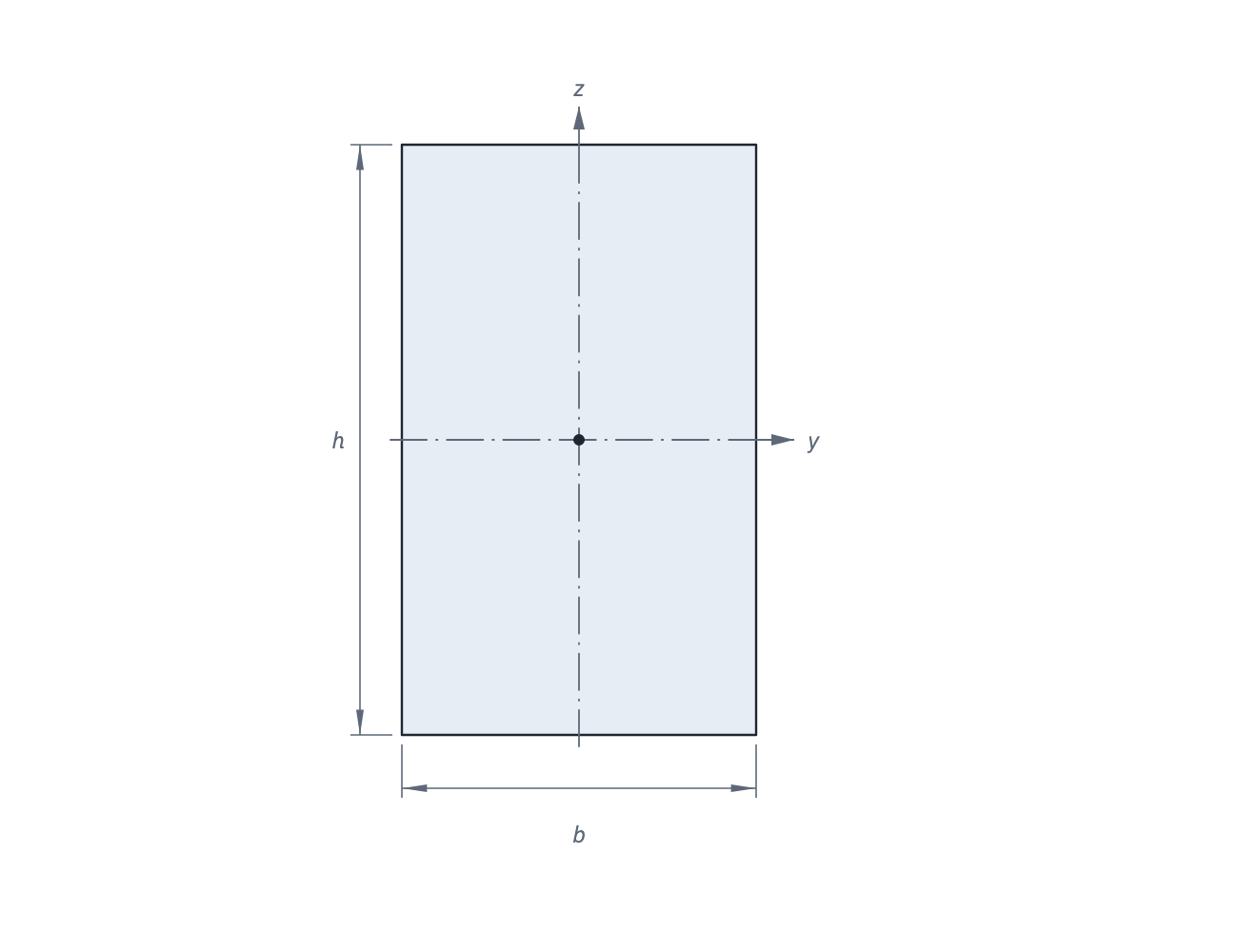
Standard sections use the y-y or z-z axes. Angle sections use the principal axes u-u or v-v.
The selected axis determines which I value and which section moduli are used in the two-dimensional analysis. SpanDraft does not calculate bending about two axes simultaneously.
Next: Supports and boundary conditions.
Technical background: Material properties; Cross-section geometry and properties.